Enterprise eReceipt and Quick Expense Integration Guide
E-receipts are digital representations of receipts with both a receipt image and structured data. The e-receipts come from pre-authorized and trusted merchants and are transmitted to the SAP Concur platform using our Receipt API (not email) on behalf of individual users who have connected their accounts/profiles between us and the merchant in advance.
Merchants can also use the Quick Expense API to create an expense with basic information such as date, amount, and expense type, with or without a receipt image. The eReceipt or Quick Expense can be added to an expense report within Concur Expense, allowing the user to provide additional details such as attendees, itemizations, etc.
This integration guide helps SAP Concur App Center E-Receipt and Quick Expense enterprise app integration partners to develop and list their apps for the App Center.
Getting Started
New App Center Partners: Your company must have entered into a commercial agreement with us. If you have not yet entered into an agreement, review the information on the Build App Center Solutions page.
Existing App Center Partners: The SAP Concur Platform team will need to configure your existing sandbox, among other things to enable access. You can make that App expansion request by contacting your Alliance Manager.
The E-Receipts Enterprise App needs to be certified before the App is listed in the SAP Concur App Center. Please follow the Enterprise App Certification Flow (create certification flow) steps to complete your App certification. Please make sure your App achieves all the criteria in Certification Checklist before you schedule the certification demo with the Certification Project Manager.
Development Environment
SAP Concur Certification Project Manager will prepare the development environment for you and send the development environment details to you by email. The development environment includes:
Sandboxes and Accounts
- You will have a sandbox on each of following SAP Concur data centers: US2, EU2.
- Three initial test accounts on each of following SAP Concur data centers: US2, EU2. Additional accounts may be created. For further information, see Managing Users.
Development App
- A development app will be created for you by your assigned certification manager. They will send you a deep link (url) to the development app along with the app client_id and client_secret. These are provided for development and testing purposes only.
- You need to send the development app’s connect URL (redirect URL) to PlatformCertification@sap.com before starting the development and testing of the development app.
Production App
- Once you complete the development app certification walkthrough, you will be provided a production app
client_idandclient_secret. - You need to send the production app’s connect URL (redirect URL) to PlatformCertification@sap.com before starting the development and testing of the production app.
- The certification project manager will provide you the deep link (URL) to the production app listing in the App Center. You will be able to access the app listing for development and testing purposes only. After your production app meets all the certification requirements and completes certification, the App Center marketing team will release it in the App Center and users in allowed regions/countries will have access.
Company Connection / Authentication
The authentication methods below is available to obtain an access_token. Password grant is required for certification:
• Company Level Authentication - Connect from the SAP Concur App Center.
App Center Flow - Connecting from SAP Concur App Center
Company Level Authentication allows a company admin user to establish a connection from App Center. The admin user needs to login via their SAP Concur credentials to access the app in the App Center. In the development and testing phase, you would be provided with the app listing solely for the purpose of development and testing. This app listing will be accessed via a deep link. This deep link will be provided to you before you start development. The instructions to connect/authenticate via password grant are:
-
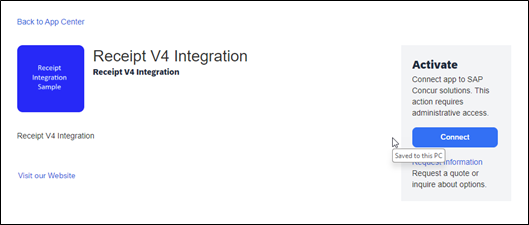
A logged in user clicks the connect button on the app listing in the App Center and authorizes your app to post data. Example of App Listing:
-
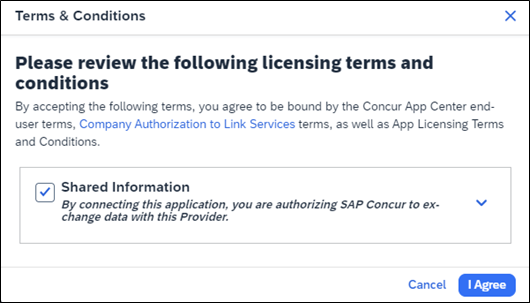
After the admin user clicks the “Connect” button, the admin user will see a prompt with the terms & conditions. Admin user agrees to the terms and conditions and clicks the “I Agree” button.
-
The authorization service will redirect the admin user to your app’s landing page. Please follow the App Center Design Guidelines to create a web page that listens for an HTTP GET request. The Guideline Checklist provides a list of required and recommended components of your landing page design. Please make sure all the required options are checked before scheduling the certification walkthrough.
-
Your landing page should allow an admin user to log in/authenticate.

-
The redirect URI will contain id and requestToken parameters. Example:
https://{partner-redirect-URI}?id=e693e3d8-00f5-4e8d-9b87-9b42896e01bd&requestToken=at-si86uekvgga2qj2i1bfj89juqgn&userId=715810de-a259-4f7d-bad7-35badc9980bb -
When your application receives the redirect call, parse the URI for the id and requestToken.
-
Use
idas theusernameparameter value andrequestTokenas thepasswordparameter value on a post request to the SAP Concur authorization service to obtain the official OAuth2access_tokenandrefresh_tokenfor the company using the password grant while being geo aware.- There are two credential types allowed with password grant,
passwordandauthtoken. For the App Center partner, please use theauthtokencredential type for the connections from the App Center. - Do not post the request to the authorization service before confirming user identification in their App.
- Please refer password grant for the post body description.
Example of Password Grant
Request
POST /oauth2/v0/token HTTP/1.1
Content-Type: application/x-www-form-urlencoded
Host: us.api.concursolutions.com
client_id={client_id} &client_secret={client_secret} &grant_type=password &username ={‘id’ from the redirect URL} &password ={‘requestToken’ from the redirect URL} &credtype= authtokenResponse
HTTP/1.1 200 OK
Content-Type: application/json
{ "expires_in": "3600", "scope": "{app-scopes}", "token_type": "Bearer", "access_token": "{access_token}", "refresh_token": "{refresh_token}", "refresh_expires_in": "{expiration time}", "id_token": "{id_token}", "geolocation": "https://us2.api.concursolutions.com" } - There are two credential types allowed with password grant,
-
An
access_tokenis valid for only one hour. The access_token should be cache in memory and discarded after use. -
After admin user has successfully completed the login process, store the following with company’s profile in your database:
-
refresh_token: (36 characters including dashes) valid for six months from the day and time issued. -
refresh_expires_in: expiration date & time in Epoch time format, please convert to UTC format. -
geolocation: to be used as the base URI when making API calls on behalf of the user. -
id: (36 characters including dashes) The companyuuidused for identity the connected company.
-
-
Confirm visually to the admin user that their partner app account has been successfully linked with their SAP Concur company.
-
You now can use the
access_tokenfor making API calls.
Token Management
Refreshing a Token
-
You will obtain a fresh
access_tokenbefore making API calls on behalf of your company using the Refreshing a Token API call. -
A
refresh_tokenis valid for six months. Calling the API to refresh theaccess_tokenwill also get the expiration time ofrefresh_tokenupdated. And schedule a process to run that will refresh arefresh_tokenprior to the expiration date if necessary. -
The below elements are returned with the new
access_token, replace previously stored values for the company in your database:-
refresh_token(replace) -
refresh_expires_in(replace) -
geolocation(replace)
-
-
If a company’s integration is idle for six months the
refresh_tokenwill expire and the company’s partner account and SAP Concur account will be de-linked. To prevent this from happening, build a scheduled job that scans your database for expiration dates and refreshes tokens X days prior to expiration. Refer Refreshing a Token API for the post body description and example.
Roster Sync
There are two endpoints that may be used to GET user data:
- Identity –
firstname,lastname, email address, and *mobile number
Note: An employee’s mobile number may not be present.
- Spend User Data - data pertaining to SAP Concur Expense Data
Linking User Accounts
Consult with the customer which employee’s will be invited to utilize the integration. Common method for inviting employees to create or link an account (if employee has an existing account) is via an email invitation. If an employee does not have an existing account, invite employee to create an account. Ensure that employee’s is link to the company’s account. If an employee has an existing account, link the existing account to the company’s account.
Recommendation: Provide a dashboard to company to manage employee’s utilizing the integration.
Getting All Active Users
- Obtain a fresh
access_tokenfor the company usingrefresh_grant - Using Identity V4.1, POST a search for active users
- Store the user’s
id(UserUUID) value associated with the user’s account
Example: Authorization Grant – Request An Access Token
Request
POST /profile/identity/v4.1/Users/.search HTTP/1.1
Authorization: Bearer
Content-Type: application/json
Host: us2.api.concursolutions.com
{
  "schemas": [ "urn:ietf:params:scim:api:messages:concur:2.0:SearchRequest" ],
  "filter": "active eq true",
  "attributes": [ "active" ]
 }
Response
   {
  "schemas": [
    "urn:ietf:params:scim:api:messages:2.0:ListResponse"
  ],
  "totalResults": 157,
  "startIndex": 1,
  "itemsPerPage": 1,
  "Resources": [
    {
      "localeOverrides": {
        "preferenceEndDayViewHour": 20,
        "preferenceFirstDayOfWeek": "Sunday",
        "preferenceDateFormat": "mm/dd/yyyy",
        "preferenceCurrencySymbolLocation": "BeforeAmount",
        "preferenceHourMinuteSeparator": ":",
        "preferenceDistance": "mile",
        "preferenceDefaultCalView": "month",
        "preference24Hour": "H:mm AM/PM",
        "preferenceNumberFormat": "1,000.00",
        "preferenceStartDayViewHour": 8,
        "preferenceNegativeCurrencyFormat": "-100",
        "preferenceNegativeNumberFormat": "-100"
      },
      "addresses": [],
      "timezone": "America/New_York",
      "meta": {
        "resourceType": "User",
        "created": "2020-12-13T22:18:29.000913Z",
        "lastModified": "2024-05-31T18:13:52.185954Z",
        "version": 6,
        "location": "https://us2.api.concursolutions.com/profile/identity/v4.1/Users/046b3a2d-081b-482c-9168-86f69ca3fd57"
      },
      "displayName": "Demo User",
      "name": {
        "honorificSuffix": null,
        "givenName": "Demo",
        "familyName": "User",
        "honorificPrefix": null,
        "middleName": null,
        "formatted": "Demo User"
      },
      "phoneNumbers": [],
      "emergencyContacts": null,
      "preferredLanguage": "en-US",
      "title": null,
      "dateOfBirth": null,
      "nickName": null,
      "schemas": [
        "urn:ietf:params:scim:schemas:core:2.0:User",
        "urn:ietf:params:scim:schemas:extension:enterprise:2.0:User"
      ],
      "active": true,
      "id": "046b3a2d-081b-482c-9168-86f69ca3fd57",
      "emails": [
        {
          "verified": false,
          "type": "work",
          "value": "demo@concur-connect.com",
          "notifications": true
        }
      ],
      "userName": "demo@concur-connect.com",
      "urn:ietf:params:scim:schemas:extension:enterprise:2.0:User": {
        "terminationDate": null,
        "companyId": "e693e3d8-00f5-4e8d-9b87-9b42896e01bd",
        "manager": null,
        "costCenter": null,
        "startDate": "2016-07-17T21:10:00Z",
        "employeeNumber": "Demo User"
      }
    }
  ],
  "nextCursor": "eyJjcmVhdGVkLWlkIjoiM....."
}
Maintaining Roster
Event Subscription Service V4 allows a partner to receive a notification for an identity change event – a company add, update, and delete a new user account in SAP. Using Event Subscription Service is recommended to maintain a company’s roster.
A company may not require all employees to be sync if an app is available to specific countries. To sync the company’s roster, the Spend User Retrieval V4.1 may be used to filter by the company’s Spend User Country.
- GET a list of users using Spend User Retrieval v4.1
- From the result set, use the
idvalue to GET user information –firstname,lastname, email, mobile number – using Identity V4.1 - Store the user’s
idvalue associated with the user’s account
Example: GET Spend User by Country
Request:
GET /profile/spend/v4.1/Users? Users?count=10&filter=urn:ietf:params:scim:schemas:extension:spend:2.0:User:country eq "US" HTTP/1.1
Authorization: Bearer
Host: us2.api.concursolutions.com
Response
{
  "schemas": [
    "urn:ietf:params:scim:api:messages:2.0:ListResponse"
  ],
  "totalResults": 61,
  "Resources": [
    {
      "schemas": [
        "urn:ietf:params:scim:schemas:ScimResource",
        "urn:ietf:params:scim:schemas:extension:spend:2.0:User",
        "urn:ietf:params:scim:schemas:extension:spend:2.0:Approver",
        "urn:ietf:params:scim:schemas:extension:spend:2.0:ApproverLimit",
        "urn:ietf:params:scim:schemas:extension:spend:2.0:Delegate",
        "urn:ietf:params:scim:schemas:extension:enterprise:2.0:Payroll",
        "urn:ietf:params:scim:schemas:extension:spend:2.0:InvoicePreference",
        "urn:ietf:params:scim:schemas:extension:spend:2.0:UserPreference",
        "urn:ietf:params:scim:schemas:extension:spend:2.0:WorkflowPreference",
        "urn:ietf:params:scim:schemas:extension:spend:2.0:Role"
      ],
      "id": "e81b768e-08aa-4d41-b101-68d8c9e5f57e",
      "meta": {
        "resourceType": "User",
        "created": null,
        "lastModified": "2020-03-25T03:09:17.390Z",
        "location": "https://us2.api.concursolutions.com/profile/spend/v4.1/Users/e81b768e-08aa-4d41-b101-68d8c9e5f57e",
        "version": null
      },
      "urn:ietf:params:scim:schemas:extension:spend:2.0:User": {
        "reimbursementCurrency": "USD",
        "reimbursementType": null,
        "ledgerCode": "SAP",
        "country": "US",
        "budgetCountryCode": null,
        "stateProvince": null,
        "locale": "es-MX",
        "cashAdvanceAccountCode": "2000",
        "testEmployee": false,
        "nonEmployee": false,
        "biManager": {
          "value": "511a3ed6-0232-43e6-8393-fafdf7dd0a63"
        },
        "customData": [
          {
            "id": "custom22",
            "value": "CN",
            "syncGuid": "557f4145-97af-9441-886e-f55de967d274",
            "href": "https://us2.api.concursolutions.com/list/v4/items/557f4145-97af-9441-886e-f55de967d274"
          },
          {
            "id": "custom21",
            "value": "US",
            "syncGuid": "19591ec9-33b2-df4a-85c0-db6fdbd0aef8",
            "href": "https://us2.api.concursolutions.com/list/v4/items/19591ec9-33b2-df4a-85c0-db6fdbd0aef8"
          },
          {
            "id": "orgUnit1",
            "value": "AU",
            "syncGuid": "f44c1a46-1485-794b-97f3-87ec80702ac0",
            "href": "https://us2.api.concursolutions.com/list/v4/items/f44c1a46-1485-794b-97f3-87ec80702ac0"
          },
          {
            "id": "custom15",
            "value": "N"
          },
          {
            "id": "orgUnit3",
            "value": "COMP2DIV1CC1",
            "syncGuid": "82f7f443-ad53-5845-a163-bfe136b9c9cc",
            "href": "https://us2.api.concursolutions.com/list/v4/items/82f7f443-ad53-5845-a163-bfe136b9c9cc"
          },
          {
            "id": "orgUnit2",
            "value": "COMP2DIV1",
            "syncGuid": "57295a71-3671-0443-8781-d0cc6124df13",
            "href": "https://us2.api.concursolutions.com/list/v4/items/57295a71-3671-0443-8781-d0cc6124df13"
          },
          {
            "id": "custom16",
            "value": "N"
          }
        ]
      },
      "urn:ietf:params:scim:schemas:extension:spend:2.0:Approver": {
        "report": [
          {
            "approver": {
              "value": "511a3ed6-0232-43e6-8393-fafdf7dd0a63"
            },
            "primary": true
          }
        ],
        "invoice": [
          {
            "approver": {
              "value": "511a3ed6-0232-43e6-8393-fafdf7dd0a63"
            },
            "primary": true
          }
        ],
        "cashAdvance": [
          {
            "approver": {
              "value": "511a3ed6-0232-43e6-8393-fafdf7dd0a63"
            },
            "primary": true
          }
        ]
      },
      "urn:ietf:params:scim:schemas:extension:spend:2.0:ApproverLimit": {},
      "urn:ietf:params:scim:schemas:extension:spend:2.0:Delegate": {},
      "urn:ietf:params:scim:schemas:extension:spend:2.0:Role": {
        "roles": [
          {
            "roleName": "TRAVEL_USER"
          },
          {
            "roleName": "EXP_TRAVEL_AND_EXPENSE_USER"
          },
          {
            "roleName": "EXP_USER"
          }
        ]
      },
      "urn:ietf:params:scim:schemas:extension:spend:2.0:UserPreference": {
        "showImagingIntro": true,
        "expenseAuditRequired": "REQUIRED",
        "allowCreditCardTransArrivalEmails": true,
        "allowReceiptImageAvailEmails": true,
        "promptForCardTransactionsOnReport": true,
        "autoAddTripCardTransOnReport": true,
        "promptForReportPrintFormat": false,
        "defaultReportPrintFormat": "RECEIPTS",
        "showTotalOnReport": true,
        "showExpenseOnReport": "PARENT",
        "showInstructHelpPanel": true,
        "useQuickItinAsDefault": false,
        "enableOcrForUi": true,
        "enableOcrForEmail": true,
        "enableTripBasedAssistant": false
      },
      "urn:ietf:params:scim:schemas:extension:spend:2.0:InvoicePreference": {},
      "urn:ietf:params:scim:schemas:extension:enterprise:2.0:Payroll": {},
      "urn:ietf:params:scim:schemas:extension:spend:2.0:WorkflowPreference": {
        "emailStatusChangeOnCashAdvance": true,
        "emailAwaitApprovalOnCashAdvance": true,
        "emailStatusChangeOnReport": true,
        "emailAwaitApprovalOnReport": true,
        "promptForApproverOnReportSubmit": false,
        "emailStatusChangeOnTravelRequest": true,
        "emailAwaitApprovalOnTravelRequest": true,
        "promptForApproverOnTravelRequestSubmit": false,
        "emailStatusChangeOnPayment": true,
        "emailAwaitApprovalOnPayment": true,
        "promptForApproverOnPaymentSubmit": false,
        "emailOnPurchaseRequestStatusChange": true,
        "emailOnPurchaseRequestAwaitApproval": true,
        "promptForPurchaseRequestApproverOnSubmit": false
      }
    }
    ..
  ],
  "startIndex": 1,
  "itemsPerPage": 10
}
Paginate through result using the index.
GET /profile/spend/v4.1/Users?startIndex=2&count=10&filter=urn:ietf:params:scim:schemas:extension:spend:2.0:User:country eq "US"Authorization: Bearer
Host: us2.api.concursolutions.com
GET the employee data using Identity V4.1
Example: GET employee data
Request:
GET /profile/identity/v4.1/Users/e81b768e-08aa-4d41-b101-68d8c9e5f57e HTTP/1.1
Authorization: Bearer
Host: us2.api.concursolutions.com
Response
{
  "localeOverrides": {
    "preferenceEndDayViewHour": 20,
    "preferenceFirstDayOfWeek": "Sunday",
    "preferenceDateFormat": "dd/mm/yyyy",
    "preferenceCurrencySymbolLocation": "BeforeAmount",
    "preferenceHourMinuteSeparator": ":",
    "preferenceDistance": "km",
    "preferenceDefaultCalView": "month",
    "preference24Hour": "H:mm AM/PM",
    "preferenceNumberFormat": "1,000.00",
    "preferenceStartDayViewHour": 8,
    "preferenceNegativeCurrencyFormat": "-100",
    "preferenceNegativeNumberFormat": "-100"
  },
  "addresses": [
    {
      "country": "US",
      "streetAddress": null,
      "postalCode": null,
      "locality": null,
      "type": "home",
      "region": null
    },
    {
      "country": "US",
      "streetAddress": null,
      "postalCode": null,
      "locality": null,
      "type": "work",
      "region": null
    }
  ],
  "timezone": "America/New_York",
  "meta": {
    "resourceType": "User",
    "created": "2020-12-14T00:01:30.000164Z",
    "lastModified": "2024-05-31T18:13:52.997833Z",
    "version": 7,
    "location": "https://us2.api.concursolutions.com/profile/identity/v4.1/Users/e81b768e-08aa-4d41-b101-68d8c9e5f57e"
  },
  "displayName": "Demo-US4 User-US4",
  "name": {
    "honorificSuffix": null,
    "givenName": "Demo-US4",
    "familyName": "User-US4",
    "honorificPrefix": null,
    "middleName": null,
    "formatted": "Demo-US4 User-US4"
  },
  "phoneNumbers": [],
  "emergencyContacts": null,
  "preferredLanguage": "es-LA",
  "title": null,
  "dateOfBirth": null,
  "nickName": null,
  "schemas": [
    "urn:ietf:params:scim:schemas:core:2.0:User",
    "urn:ietf:params:scim:schemas:extension:enterprise:2.0:User"
  ],
  "active": true,
  "id": "e81b768e-08aa-4d41-b101-68d8c9e5f57e",
  "emails": [],
  "userName": "demo-us4@connect223-pro.com",
  "urn:ietf:params:scim:schemas:extension:enterprise:2.0:User": {
    "terminationDate": null,
    "companyId": "e693e3d8-00f5-4e8d-9b87-9b42896e01bd",
    "manager": {
      "value": "511a3ed6-0232-43e6-8393-fafdf7dd0a63",
      "employeeNumber": "z10000"
    },
    "costCenter": null,
    "startDate": "2016-10-13T07:00:00Z",
    "employeeNumber": "10004"
  }
}
Posting eReceipts
For information on getting started with Receipts v4.
- You should select General eReceipt type or Grand Transportation eReceipt type from the Supported Receipt type list and retrieve the list schemas for the selected receipt types.
- To ensure that you are using the correct endpoint URLs, the safest practice is to check the service index before every request. Get Service Index.
- We generate a standard receipt if you do not provide a receipt image.
- We can display your app logo in standard generated receipts (size 100x100 px). Please send your company logo image file (.png) to PlatformCertification@sap.com.
- If your app currently generates a receipt image in .png, .jpg, .tif, .pdf, or other image file, you can include it in your post. Follow the requirement of supported image formats if you are posting the eReceipts with images.
Post a General eReceipt
- Obtain a fresh access_token for the company using refresh grant.
- You will need the user
idpreviously stored in the user’s profile to post receipts on their behalf. - Post receipt using the Post Receipt endpoint.
- You should store the concur-correlationid and the Location link from the response headers even for successful responses, this will facilitate support efforts in case of a missing receipt from a user’s SAP Concur account.
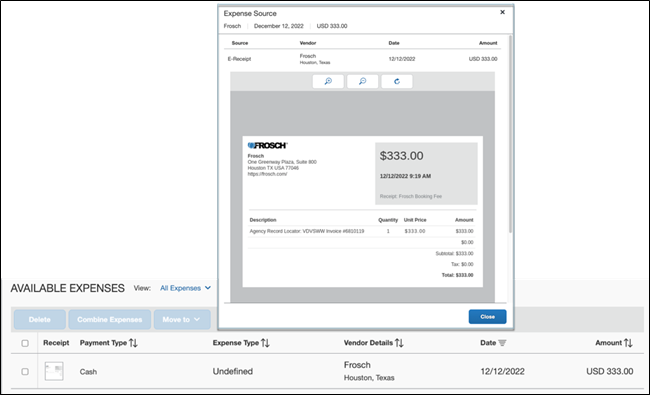
- A general eReceipt is not mapped to any expense type. When a user adds the eReceipt into the expense report, the expense entry’s expense type will be “Undefined”. The user needs to change the expense type accordingly.
- The general eReceipt schema includes all receipt core definitions.
Example: Posting a General e-Receipt
Request:
POST /receipts/v4/users/{UserUUID} HTTP/1.1
Host: {HOST}
Authorization: Bearer {ACCESS_TOKEN}
Link: <http://schema.concursolutions.com/general-receipt.schema.json>; rel="describedBy"
Content-Type: application/json
Response
{
    "reference": "Frosch Booking Fee",
    "dateTime": "2022-12-12T09:19:02-0500",
    "total": "333.00",
    "subtotal": "333.00",
    "taxesTotal": "0.00",
    "currencyCode": "USD",
    "seller": {
        "name": "Frosch",
        "location": {
            "name": "Booking Fee",
            "internetAddress": "https://frosch.com/",
            "address": {
                "streetAddress": "One Greenway Plaza, Suite 800",
                "addressLocality": "Houston",
                "addressRegion": "TX",
                "addressCountry": "USA",
                "postalCode": "77046"
            }
        }
    },
    "taxes": [
        {
            "amount": "0.00"
        }
    ],
    "payments": [
        {
            "amount": "333.00"
        }
    ],
    "lineItems": [
        {
            "sequenceNumber": 1,
            "reference": "Frosch Invoice",
            "description": "Agency Record Locator: VDVSWW Invoice #6810119",
            "quantity": 1,
            "unitCost": "333.00",
            "subtotal": "333.00",
            "taxesTotal": "0.00",
            "total": "333.00",
            "taxes": [
                {
                "amount": "0.00"
                }
            ]
        }
    ]
    }
Response
HTTP/1.1 201 OK
Response Header
Content-Length: 0
Concur-correlationid: c559ab367ff8436d1d0c4ffe917664a3
Link:<http://schema.concursolutions.com/general-receipt.schema.json>; rel="describedBy", <https://us2.api.concursolutions.com/receipts/v4/status/eed70d8a344e4b8c9d8ad2b7b37c34e2>; rel="processing-status"
Location: https://us2.api.concursolutions.com/receipts/v4/eed70d8a344e4b8c9d8ad2b7b37c34e2
Receipt is now shown in the Available Expense list and the receipt Expense Type is “Undefined”.
Example: Posting a General e-Receipt with Image
Request
POST /receipts/v4/users/{UUID} HTTP/1.1
Host: {HOST}
Authorization: Bearer {ACCESS_TOKEN}
Link: <http://schema.concursolutions.com/general-receipt.schema.json>; rel="describedBy"
Content-Type: multipart/form-data;
Content-Disposition: form-data; name="image"; filename="receipt_image.pdf"
Content-Type: application/pdf
Content-Disposition: form-data; name="receipt"
{
      "dateTime": "2022-10-22T13:00:00+0800",
      "reference": "91310000",
      "seller": {
      "taxId": "MA1FL0TJ7J",
      "name": "ABC Corporation",
      "description": ",",
      "location": {
         "address": {
               "streetAddress": "225 32nd Ave",
               "addressLocality": "Seattle",
               "addressRegion": "WA",
               "addressCountry": "US"
               }
         }
      },
      "total": "180.0",
      "taxesTotal": "20.0",
      "subtotal": "160.0",
      "payments": [
         {
               "amount": "180.0"
         }
      ],
      "currencyCode": "USD"
}
Post a Ground Transportation eReceipt
- Obtain a fresh
access_tokenfor the company using refresh grant. - You will need the user
idpreviously stored in the user’s profile to post receipts on their behalf. - Post receipt using the Post Receipt endpoint.
- You should store the concur-correlationid and the Location link from the response headers even for successful responses, this will facilitate support efforts in case of a missing receipt from the user’s SAP Concur account.
- The Ground Transportation eReceipt Schema includes all forms of non-aerial transportation and all Receipt Core Definition.
Refer to the Ground Transportation eReceipt POST example.
Response Codes
Response Codes (Success/Failure) Can be found at: https://developer.concur.com/api-reference/receipts/response-codes.html
Posting Quick Expenses
The Quick Expense API can be used to create an expense with basic information such as date, amount, and expense type, with or without a receipt image. This expense can be added to an expense report within Concur Expense, allowing the user to provide additional details such as attendees, itemizations, etc.
Creating a Quick Expense
- Obtain a fresh
access_tokenfor the company using refresh grant. - You will need the user
idpreviously stored in the user’s profile to post receipts on their behalf. - Post the quick expense using the Quick Expense endpoint.
- You should store the concur-correlationid from the response headers and the quickExpenseIdUri from the response body. This will facilitate support efforts in case of a missing quick expense from user’s SAP Concur account.
- The Quick Expense Schema includes required fields of expenseTypeId, transactionAmount, and transactionDate.
- The supported
expenseTypeIdvalue can be retrieved from Expense Configuration Service. The frequently usedexpenseTypeIdvalues are listed below:
expenseTypeId |
Description |
|---|---|
| AIRFR | Airfare |
| AWRDS | Gifts - Clients |
| BANKF | Bank Fees |
| BRKFT | Breakfast |
| BUSML | Entertainment - Clients |
| CARRT | Car Rental |
| CELPH | Mobile/Cellular Phone |
| DINNR | Dinner |
| DUESX | Professional Subscriptions/Dues |
| GASXX | Fuel |
| GIFTS | Gifts - Staff |
| LNDRY | Laundry |
| LOCPH | Telephone/Fax |
| LODNG | Hotel |
| LUNCH | Lunch |
| MILEG | Personal Car Mileage |
| MISCL | Miscellaneous |
| OFCSP | Office Equipment/Hardware |
| ONLIN | Internet/Online Fees |
| PARKG | Parking |
| POSTG | Postage |
| SEMNR | Seminar/Course fees |
| TAXIX | Taxi |
| TOLLS | Tolls/Road Charges |
| TRAIN | Public Transport |
| TRDSH | Marketing/Promotional Costs |
| 01004 | Entertainment - Staff |
| 01005 | Courier/Shipping/Freight |
| 01006 | Printing/Photocopying/Stationery |
| 01007 | Office Supplies/Software |
| 01009 | Tips/Gratuities |
| 01012 | Tuition/Training Reimbursement |
| 01025 | Train |
| 01027 | Business Meals (Attendees) |
| 01028 | Individual Meals |
Example: Posting a Quick Expense
Request:
POST /quickexpense/v4/users/{UUID}/context/TRAVELER/quickexpenses HTTP/1.1
Host: {HOST}
Authorization: Bearer {ACCESS_TOKEN}
Content-Type: application/json
{

   "Comment": "Business Meal",
   "expenseTypeId": "BUSML",
   "location": {
      "city": "Bellevue",
      "countryCode": "US",
      "countrySubDivisionCode": "US-WA",
      "name": "ARIA"
   },
   "paymentTypeId": "CASHX",
   "transactionAmount": {
      "currencyCode": "USD",
      "value": 120.00
   },
   "transactionDate": "2022-12-12",
   "Vendor": "ARIA"
}
Response
HTTP/1.1 201 OK
{
   "mobileEntryKeyUri": "https://us2.api.concursolutions.com/quickexpense/v4/users/{UUID}/context/TRAVELER/quickexpenses/1234157338",
   "quickExpenseIdUri": "https://us2.api.concursolutions.com/quickexpense/v4/users/{UUID}/context/TRAVELER/quickexpenses/506CF67C85BA436097F434F39CAE7DD8"
}
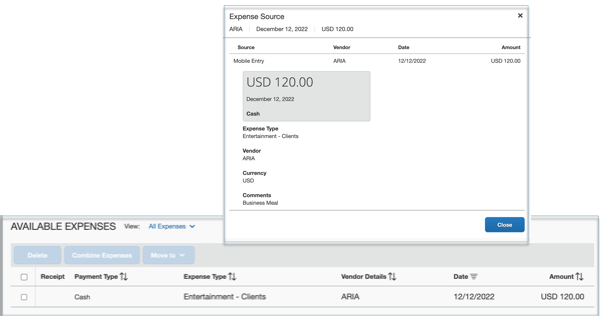
The sample quick expense item is now shown in the Available Expense list.
Postman Sample Collections
Click the following links to download the postman sample collection zip file or click the ‘Run in Postman’ button to fork the collection to your workspace or import the collection to Postman.
- Authentication API Postman Collection
- Identity-Spend User API Postman Collection
- General eReceipt Postman Collection
- Ground Transportation Postman Collection
- Quick Expense Postman Collection
Creating and Updating an App Center Listing
You need to send the complete landing page content to PlatformCertification@sap.com. The CPM and marketing team review and approve the listing documents and send the confirmation to your marketing team. You need this approval prior to scheduling the final certification call with PlatformCertification@sap.com.
This includes:
- App Center Listing Form (Download)
- Listing Images (Please follow the image specification in the App Center Listing Form.)
The CPM and marketing team will review your content for clarity, ease of reading, and consistency with the SAP Concur brand guidelines. The CPM and marketing team will return it with any comments or suggestions. Please plan for a 10 to 14-day turnaround window for the review process.
Once your content is finalized, your listing will be queued for launch on an agreed upon date. Your app must be certified prior to launch.
Please visit Go To Market page to prepare your SAP Concur App Center launch.
Error Handling
Retry Logic for Timeouts
Your app should have the retry logic for any API call timeout. For example, retry for every 30 seconds if you get the API call timeout and retry 5 ~ 10 times.
HTTP Response Code and Error Codes
HTTP responses with status code of 4xx, 5xx are all treated as errors. The HTTP response body contains the details of the error, including error code, error name, error description, etc.
For example, 4xx class errors have a JSON response with the following fields:
{
  "code": "<number>",
  "error": "<error>",
  "error_description": "<error_descriptio>",
  "geolocation": "<geolocation_url_where_user_lives>"
}
Please refer to the Authentication Response Codes list for more details about Authentication errors.
Please refer to the Receipts v4 API Response Codes list for more details about receipts errors.
Error 401
Error 401 is an authentication related error. A 401 will be returned when the JWT used for authentication is valid, but doesn’t match the correct user. When using a user JWT, the request must be to a URL for the same user that is represented in the JWT.
Error 403
Error 403 is an authentication related error. A 403 will be returned if there is no JWT in the authorization header of the request, or if the JWT is invalid or expired.
Example:
{
   "error": "invalid_grant",
   "concur-correlationid": "72a8bb8479.........02244b8",
   "error_description": "bad or expired refresh token",
   "code": 108,
   "geolocation": "https://us2.api.concursolutions.com"
}
This response is also for cases where the JWT does not include the scope required to fulfill the request.
Error 404
The receipt(s) you requested could not be found. Check that the receipt and/or user ID are correct.
Error 500/503
Error 500 is an internal server error. If you receive an error 500 while posting an eReceipt, you should retry the API at least 3 times. If you still encounter an error 500 after retrying, please log a support ticket.
Error Logging
If you receive an error while calling an API, please save the error code, error message, error responses body. You must save the concur-correlationId from the API response header, which is required to log the support ticket.
FAQ
How can I get support during the development phase?
You should send your questions to PlatformCertification@sap.com. We will review your request/questions and will reply within 5 business days.
How do I schedule the certification walkthrough?
There will be a one-week certification time window per month. You should send your certification walkthrough request to PlatformCertification@sap.com one month before the certification date you would like schedule. We will reply with a meeting invitation within 5 business days.
Please find your certification date time based on the certification calendar.
How do I log a support case?
You should provide the contact detail to your SAP Concur BD/Alliance manager or PlatformCertification@sap.com for creating an account on the partner support portal.
To log a support case, please login and open a partner support case from partner support portal. You will need to provide the required information when logging a support case.
Where can I find API or product update information?
The SAP Concur API monthly updates can be found in the Developer Platform Release Notes.
The SAP Concur product related update can be found in the Client Shared Release Notes.
eReceipt Troubleshooting
Why are my eReceipts not appearing in Available Expenses?
A Travel Reservation Expense Type mapping may not be mapped to Expense Type. Documentation can be found in the SAP Help Portal Mapping the Travel Reservations to Expense Types.
How does Smart Matching work?
Documentation can be found in the SAP Help Portal Smart Matching Functionality and for example at Combine and Separate Transactions.